
Permissions
Permissions
This document explains the comprehensive permission system implemented in Nuxt Auto Admin.
Configuration
Add permission configuration to your nuxt.config.ts:
export default defineNuxtConfig({
  autoAdmin: {
    permissions: {
      // How to handle buttons when user lacks permission
      // 'disable' = show buttons but disable them (default)
      // 'hide' = completely hide buttons
      unauthorizedButtons: 'disable',

      // How to handle sidebar items when user lacks permission
      // 'hide' = completely hide items from sidebar (default)
      // 'disable' = show items but in disabled state (grayed out, not clickable)
      unauthorizedSidebarItems: 'hide'
    }
  }
})
Features
1. Button Behavior
Buttons respect the unauthorizedButtons configuration:
When set to 'disable' (default):
- Buttons are shown but disabled
- Forms show with all fields disabled
- User sees an orange warning banner indicating limited access
- Better UX - user can see what they could do with proper permissions
When set to 'hide':
- Buttons are completely hidden from UI
- Forms show a red permission denied message
- Stricter access control
Affected buttons:
- "Create New" button on list pages
- "Edit" and "Delete" buttons on detail pages
- "Save" button on edit/create forms
- The list toolbar: "Delete selected" (
canDelete), "Export" (canRead) and "Import" (canCreate) — see Features. Row checkboxes appear only withcanDelete. - Action buttons in table context menus (always shown but disabled)
Edit and Delete — on the detail page, the edit page, the view dialog, each row's menu and each row's checkbox —
follow that record's permission, not just the resource's: a resource with an objectLevel rule (only the
author may edit, drafts are read-only) gets them disabled on exactly the rows the API would refuse. The admin
asks GET /api/{resource}/permissions?ids=… once per page of rows.
2. Sidebar Menu Items
Sidebar items respect the unauthorizedSidebarItems configuration:
When set to 'hide' (default):
- Resources without any permissions are removed from sidebar
- Cleaner UI showing only accessible resources
When set to 'disable':
- Resources without permissions are shown but grayed out
- Not clickable (rendered as
<div>instead of<NuxtLink>) - User can see what resources exist but can't access them
3. Table Context Menu
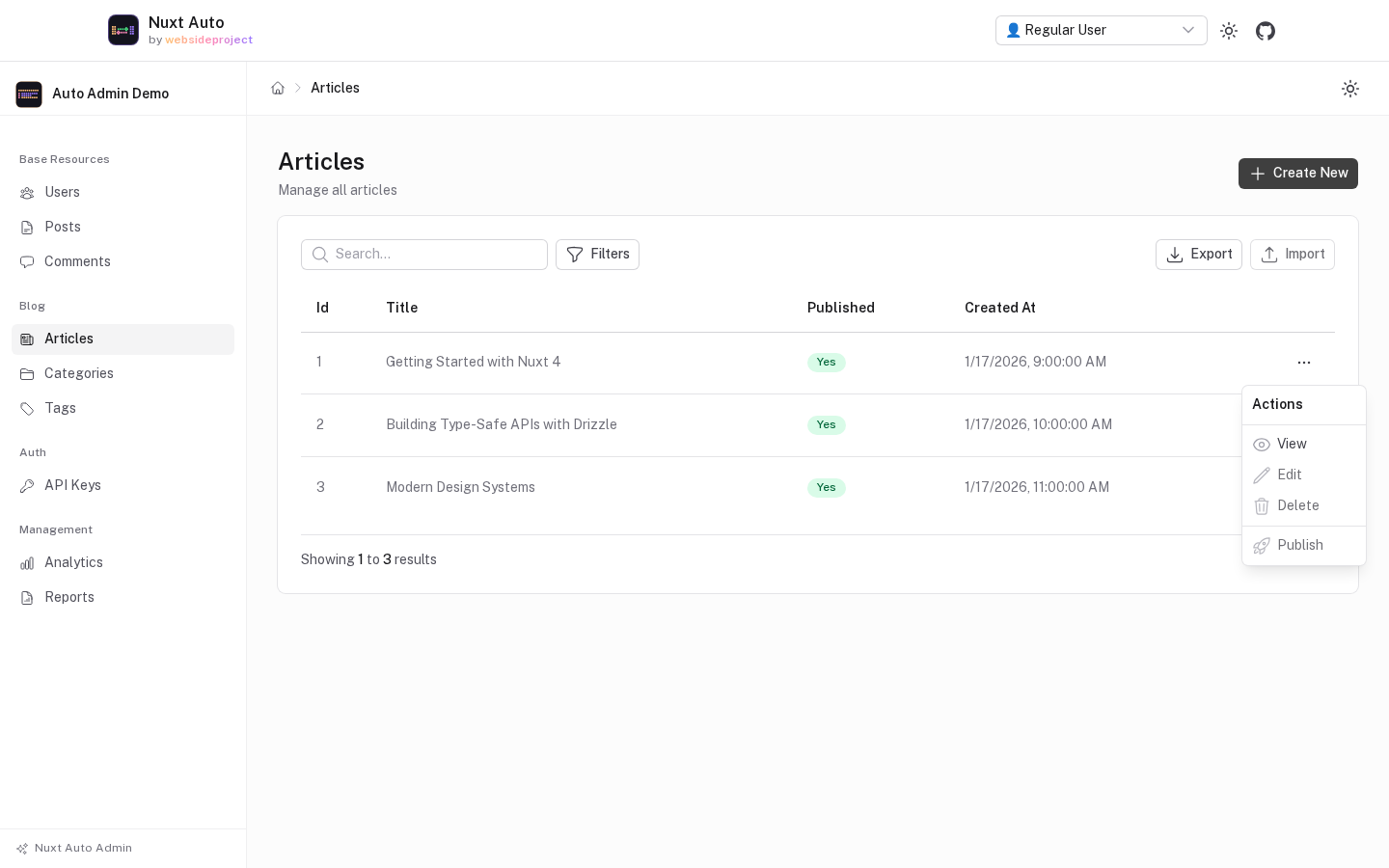
The dropdown menu in table rows now shows all actions but disables them based on permissions:
// Items are always shown in menu
items = [
  { label: 'View', icon: 'i-heroicons-eye', onSelect: ... },
  { label: 'Edit', icon: 'i-heroicons-pencil', disabled: !canUpdate, onSelect: ... },
  { label: 'Delete', icon: 'i-heroicons-trash', disabled: !canDelete, onSelect: ... }
]
4. Direct URL Access Protection
A global middleware (permissions.global.ts) intercepts all admin routes and checks permissions:
- Checks if user has any permission for the resource
- Returns 403 Forbidden if no permission
- Shows nice error page with "Go Back" and "Go to Dashboard" buttons
- Works for both resource routes and custom pages
5. Custom Pages Permissions
Custom pages can define permissions in two ways:
Using permission strings:
customPages: [
  {
    name: 'settings',
    label: 'Settings',
    path: 'settings',
    icon: 'i-heroicons-cog-6-tooth',
    // '<resource>:<action>' — what GET /api/permissions says the caller may do
    permissions: 'users:update' // '<resource>:<action>' of a registered resource
    // OR several (the caller needs ALL)
    // permissions: ['users:update', 'posts:read']  // all required
  }
]
Actions are create, read, update, delete, restore and purge. An entry in any other form grants
nothing, so a typo hides the page rather than opening it. For any other rule, give the page itself a route
middleware (definePageMeta({ middleware: … })); a canAccess function in nuxt.config could never reach the
running app and now fails the build.
6. Form Disabled State
When a user lacks update permission but unauthorizedButtons is set to 'disable':
- All form fields are disabled via cascading
disabledprop - Save button is disabled
- Reset button is disabled
- M2M relation cards are disabled (select + save buttons)
- Orange warning banner shows "Limited Access" message
7. Permission Denied Pages
Users see appropriate error messages when accessing unauthorized pages:
403 Forbidden Error:
- Shows permission denied icon
- Clear error message
- "Go Back" and "Go to Dashboard" buttons
- Consistent styling with the rest of the admin panel
Components Updated
Pages
admin/[resource]/index.vue- List page with Create buttonadmin/[resource]/[id].vue- Detail page with Edit/Delete buttons and read permission checkadmin/[resource]/[id]/edit.vue- Edit page with disabled form optionadmin/[resource]/new.vue- Create page with disabled form optionadmin/error.vue- Error page for permission denied and other errors
Components
ResourceTable.vue- Context menu actions always shown but disabled; toolbar buttons followunauthorizedButtonsResourceAuditLog.vue- History panel; a caller who may not read the audit log gets a note, not an errorResourceForm.vue- AcceptsdisabledpropAutoForm.vue- Cascadesdisabledto all fields and buttonsAutoField.vue- Passesdisabledto widgetsM2MRelationCard.vue- Supports disabled stateResourceNavLink.vue- Shows resource links based on permissionsCustomPageNavLink.vue- Shows custom page links based on permissionsAdminSidebar.vue- Filters/disables items based on configPermissionDeniedPage.vue- Reusable permission denied component
New Files
composables/useAdminConfig.ts- Access admin configurationmiddleware/permissions.global.ts- Global route guardcomponents/PermissionDeniedPage.vue- Permission denied UIpages/admin/error.vue- Error page handler
Permission Checks
The system uses the existing useAdminPermissions composable which provides:
const {
  canCreate,
  canRead,
  canUpdate,
  canDelete,
  hasAnyPermission,
  isLoading,
  getPermissionDeniedMessage
} = useAdminPermissions(resourceName)
Examples
Example 1: Strict Access Control
autoAdmin: {
  permissions: {
    unauthorizedButtons: 'hide',
    unauthorizedSidebarItems: 'hide'
  }
}
Result:
- Users only see what they can access
- No disabled buttons or grayed out items
- Cleaner, simpler UI
- Users might not know what they're missing
Example 2: Transparent Access Control
autoAdmin: {
  permissions: {
    unauthorizedButtons: 'disable',
    unauthorizedSidebarItems: 'disable'
  }
}
Result:
- Users see all features but can't use unauthorized ones
- Clear indication of what exists but is restricted
- Better for discovering what permissions they might need
- More helpful warning messages
Example 3: Balanced Approach (Default)
autoAdmin: {
  permissions: {
    unauthorizedButtons: 'disable',
    unauthorizedSidebarItems: 'hide'
  }
}
Result:
- Sidebar is clean (only shows accessible resources)
- Within accessible resources, users see disabled buttons
- Good balance between discoverability and simplicity
Best Practices
- Choose based on your use case:
- Hide buttons/items for external users or strict security
- Disable buttons/items for internal users who might request access
- Custom pages use
permissions: ['<resource>:<action>'], or their own route middleware for other rules - The middleware protects all routes - even if UI shows something, the middleware will block unauthorized access
- Test both configurations to see which provides better UX for your users
- Permission denied messages are customizable via the
getPermissionDeniedMessagefunction
Migration
If you're upgrading from a previous version:
- Add the
permissionsconfig to yournuxt.config.ts(optional, has defaults) - Existing functionality works as before
- The default behavior (
unauthorizedButtons: 'disable') is more permissive than the old hide-only behavior - If you want the old behavior, set
unauthorizedButtons: 'hide'
Form Fields & Widgets
Customize create and edit forms with the admin's nine widgets: TextInput, TextareaInput, NumberInput, CheckboxInput, SelectInput, DateTimePicker, PasswordInput, RelationSelect and MultiRelationSelect. An unknown widget name falls back to TextInput (with a console warning).
Custom Pages
Add custom pages to your admin panel for features beyond standard CRUD operations.