
Storage Admin Features
The storage module includes a set of admin features to manage your files and monitor your storage usage.
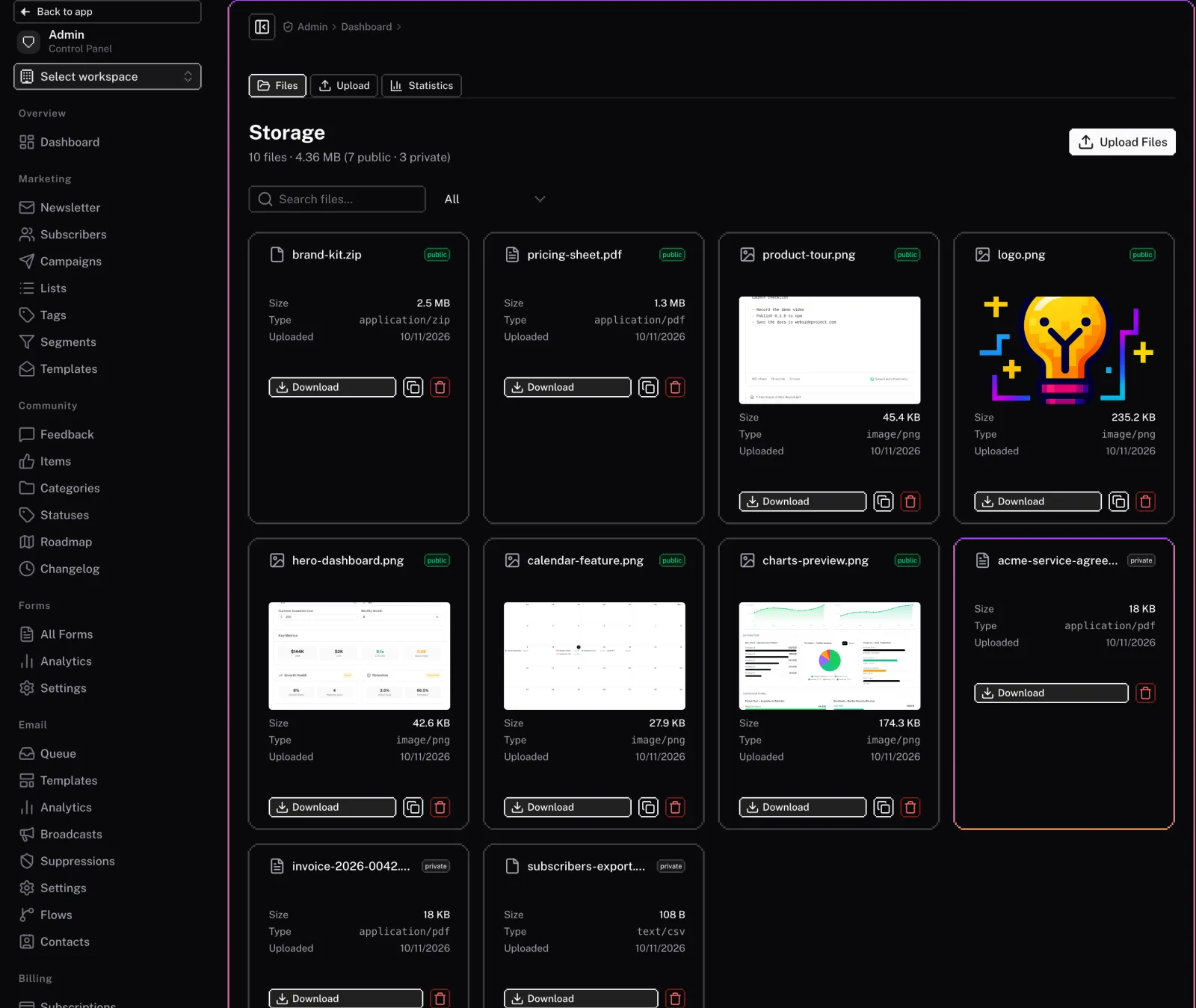
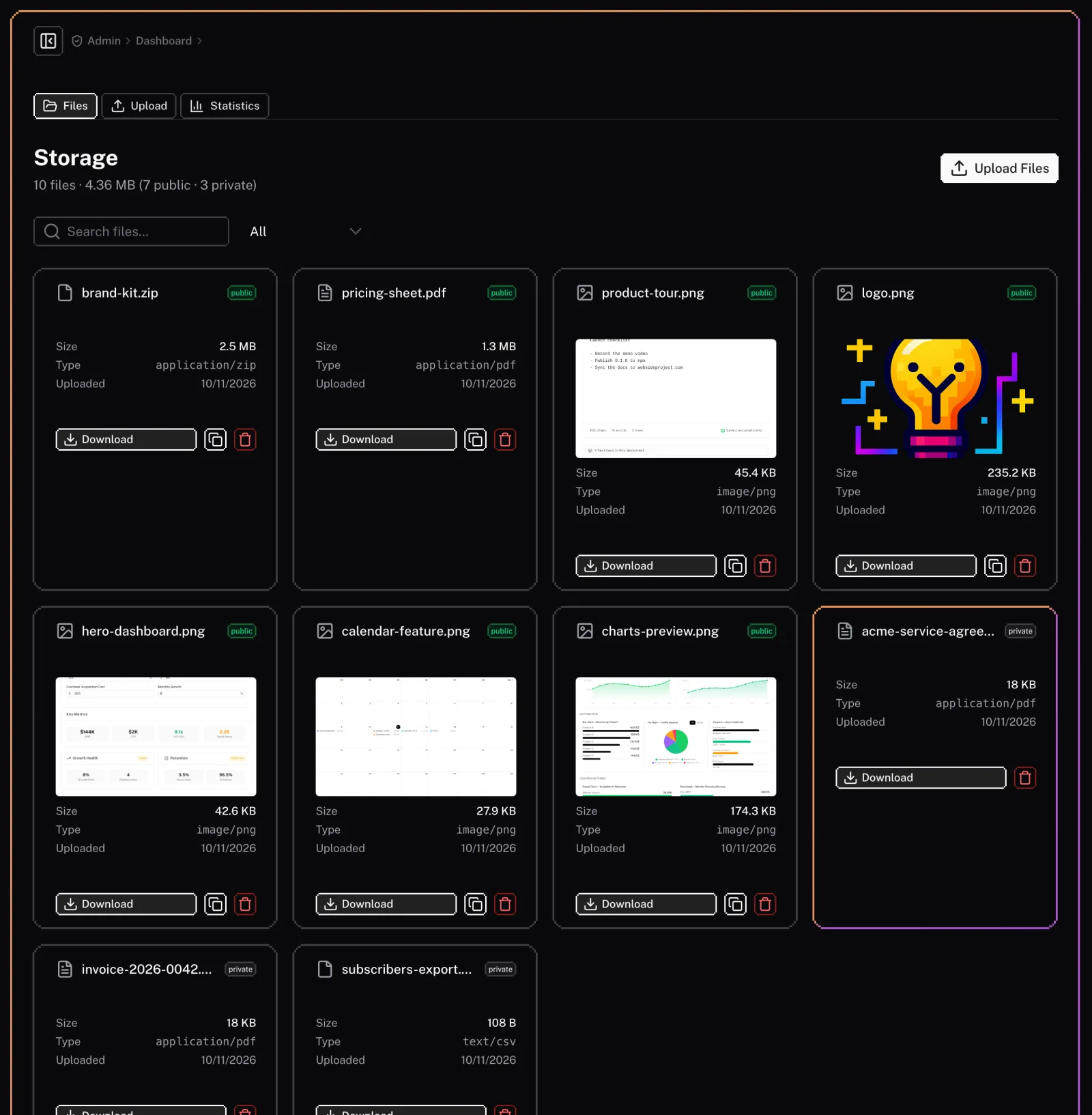
File Manager
The admin panel includes a file manager to browse and manage your stored files. You can:
- Browse files and folders: Navigate through your public and private buckets.
- Upload and download files: Upload new files and download existing ones.
- Delete files: Remove files that are no longer needed.
- View file details: See information about a file, such as its size, type, and last modified date.
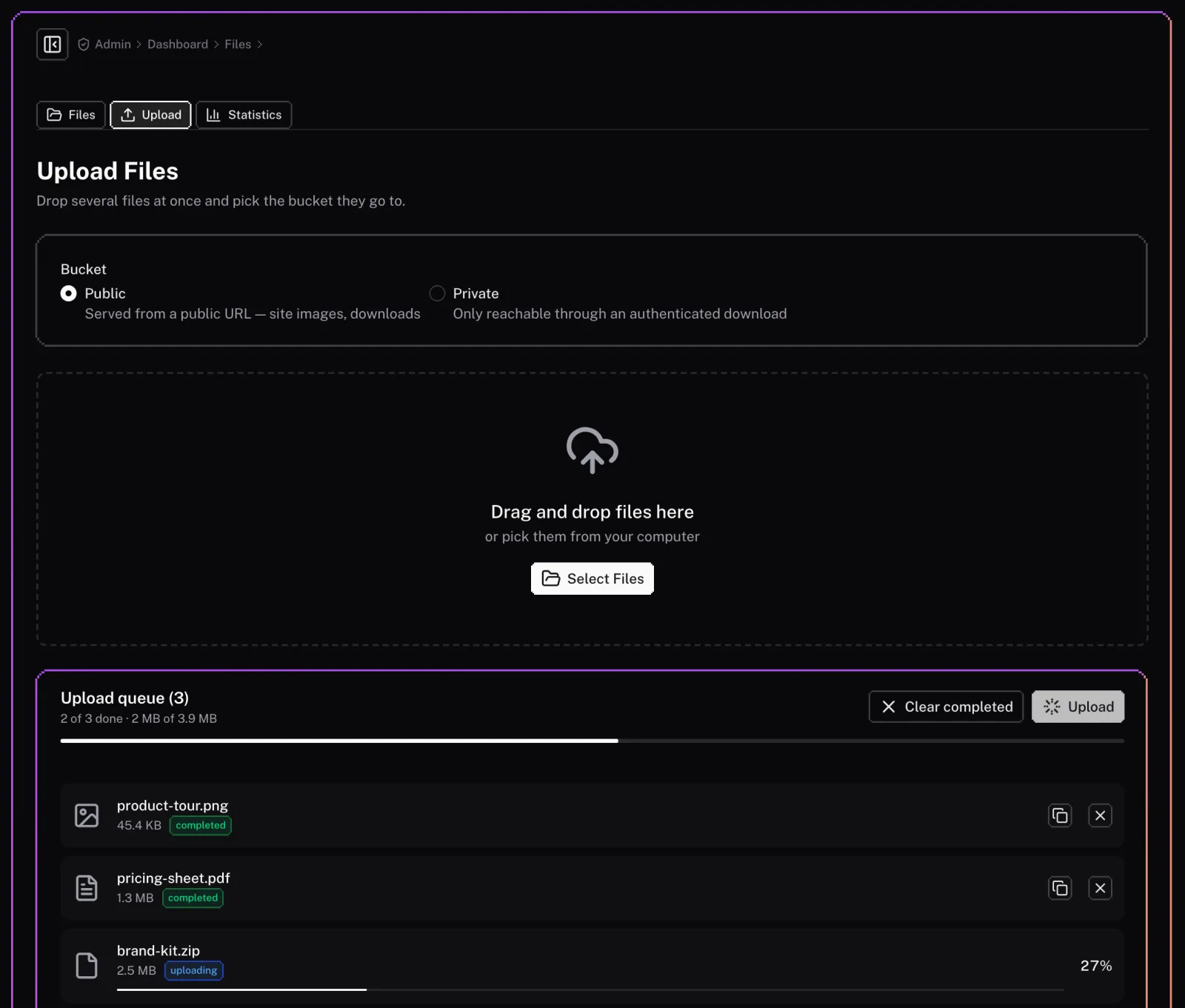
File Uploader
The admin panel includes a file uploader to easily upload new files to your storage. You can:
- Drag and drop files: Drag and drop files from your computer to upload them.
- Select files from a dialog: Use a file dialog to select files to upload.
- Upload multiple files: Upload multiple files at once.
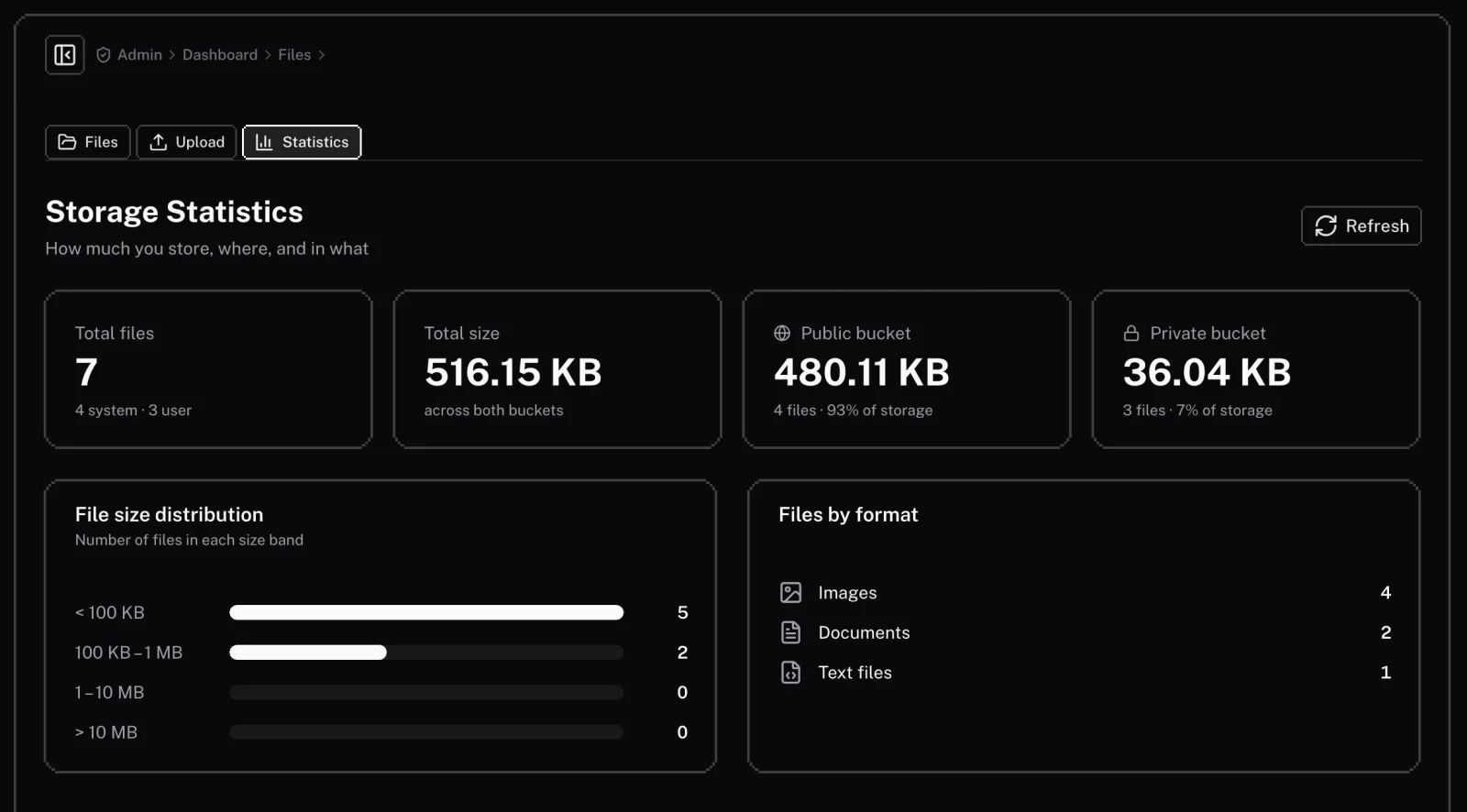
Statistics
The statistics section provides insights into your storage usage. You can view:
- Total storage usage: See how much storage you are using in your public and private buckets.
- Number of files: See how many files you have stored.
- File size distribution: See a chart of your files by size.
Details
Our Storage feature makes handling files easy, secure, and cost-effective.
Technical
This document provides technical details about the Storage feature, primarily for developers or for advanced configuration after deployment.